Description



Product Description
mouse wireless 
laptop mouse 
 Slim and Portable
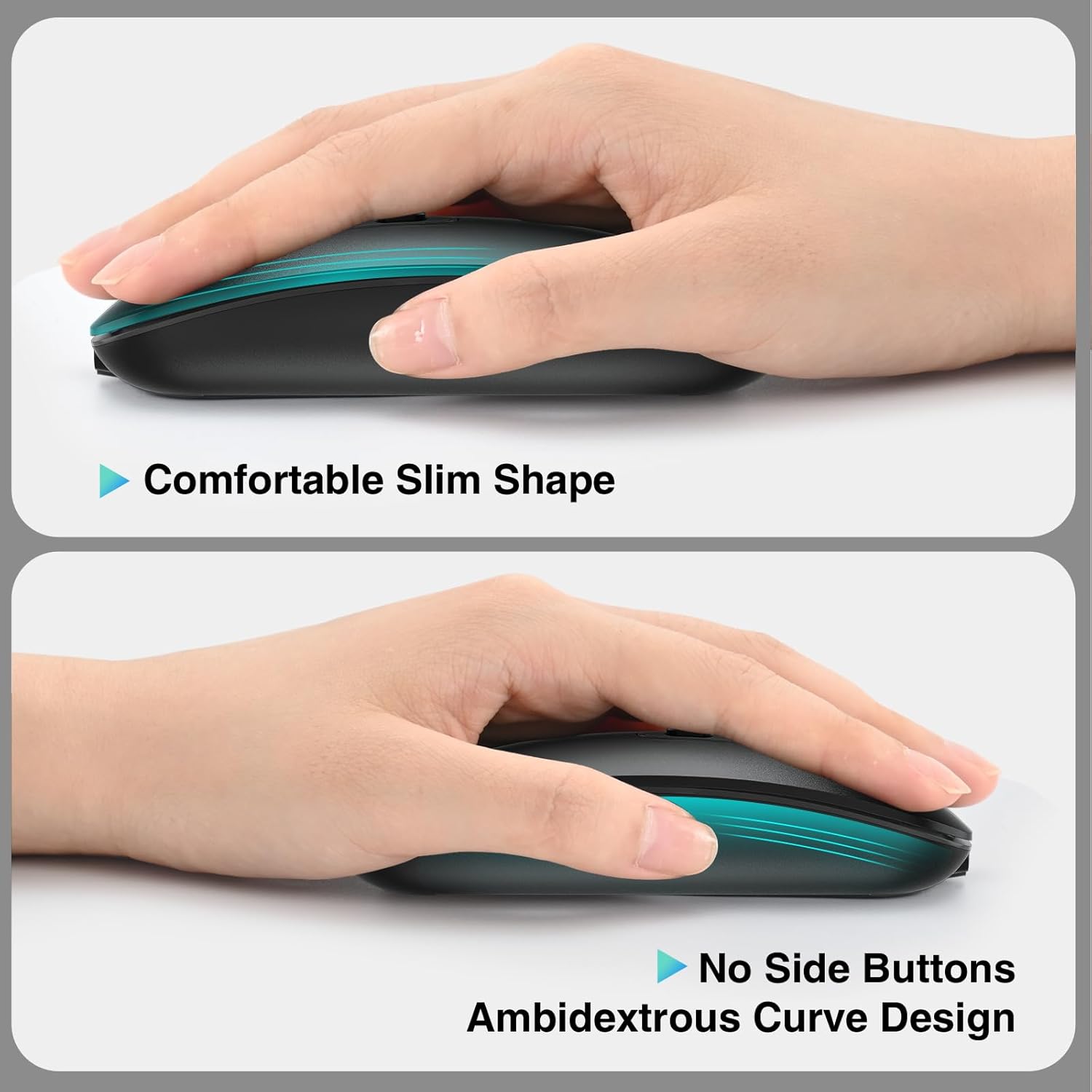
This lightweight 70g cimetech small mouse is easy to control and simple to store in a laptop bag, making it perfect for use both at home and in the office.


silent mouse 
1
2
3
4

How to connect the mouse via bluetooth?
1.Switch the button to the Bluetooth logo side (on the bottom of the mouse)- Blue light flashing (Bluetooth pairing status).
2.Turn on your Device’s Bluetooth function.
3.Search and choose connection named ‘BT5.1 Mouse ‘to connect with.
How to connect the mouse via usb receiver?
1.Switch the button to the USB logo side (on the bottom of the mouse).
2.Take out the USB receiver(stored behind the mouse).
3.Insert the USB receiver into your device’s USB port.
Can I also connect this mouse to an iPad or computer that is already connected to a Bluetooth keyboard?
Yes. You can connect this wireless mouse through Bluetooth or USB at the same time, and use it with connected Bluetooth keyboards and other devices on the computer, ipad, tablet or laptop.
Will this mouse work with an existing driver?
It can be used with any modern computer without the need for a dedicated driver. To use with Windows laptops and Macbooks, simply insert a dongle or connect via Bluetooth.
How long does a mouse last on a single charge?
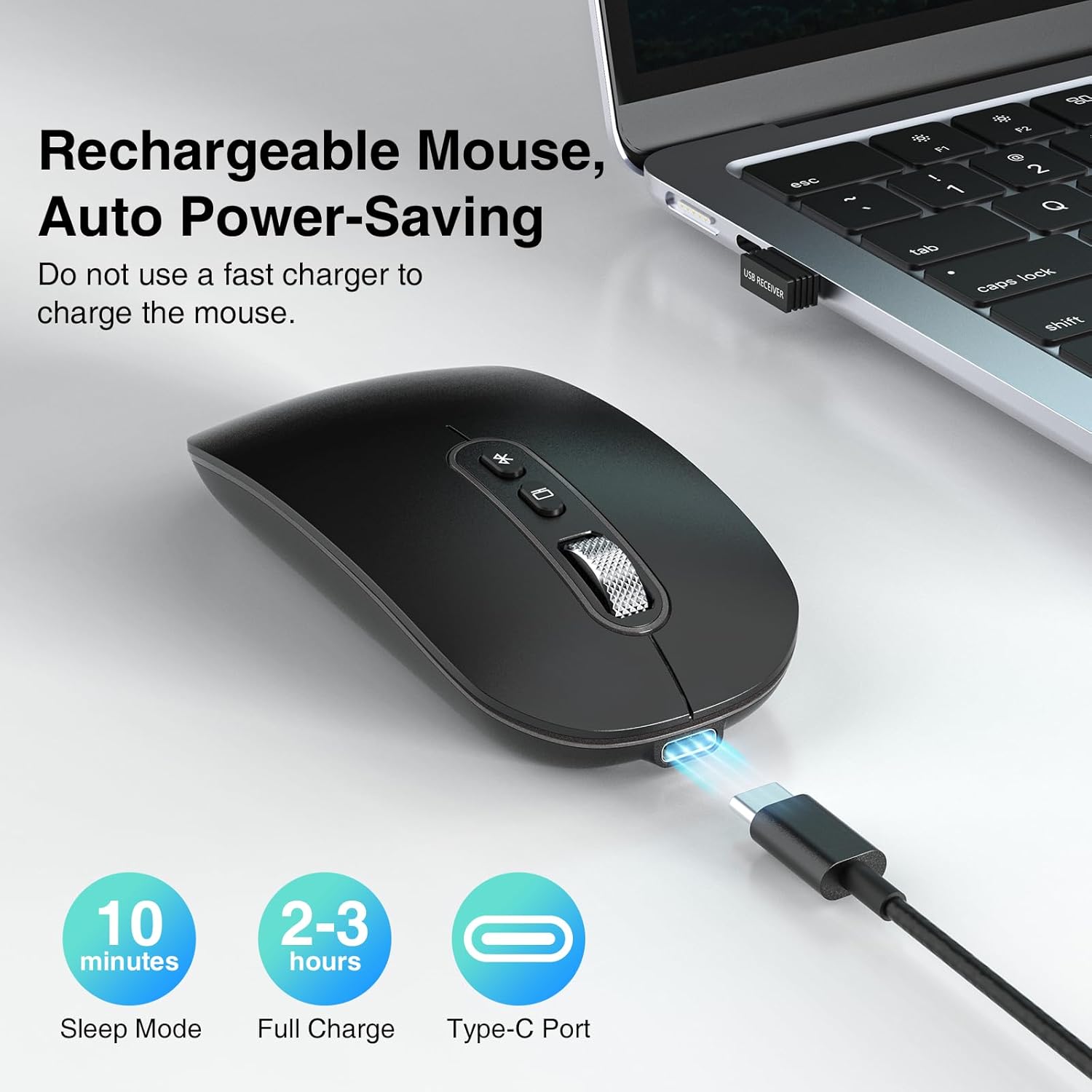
The mouse can be charged via the USB cable in about two hours. A full charge typically lasts 3–4 weeks, and you can continue using the mouse while it’s charging.
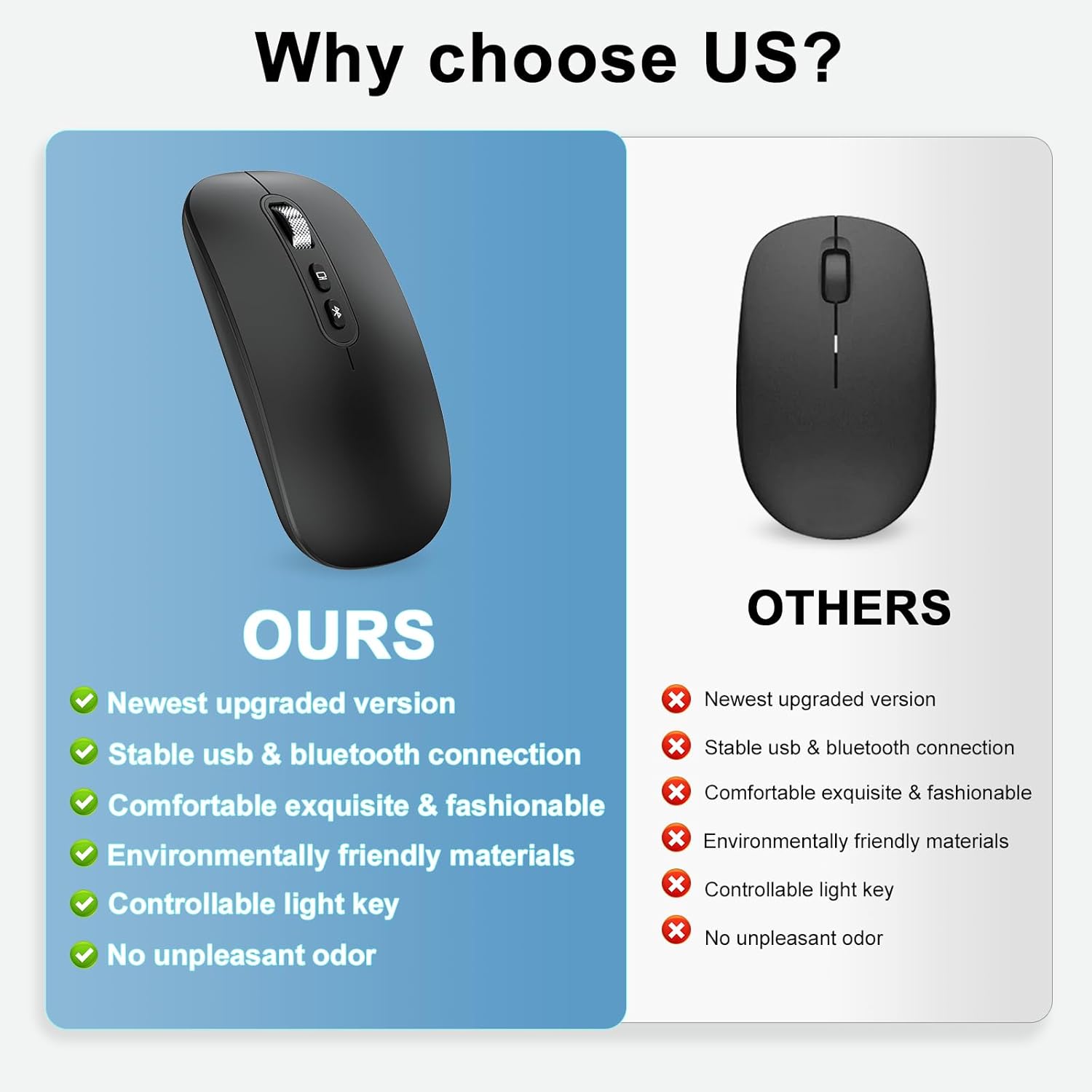
Dual Connectivity, Maximum Freedom: Wireless mouse with Bluetooth & 2.4G USB receiver for reliable connection to any device. Stable and automatic connection every time you turn on your computer (compatible with Bluetooth 5.1/5.0/4.0/3.0/2.0).
Ultra Slim & Lightweight: The perfect laptop mouse companion for on the go, fits in any bag. Lightweight Cimetech mouse easy to control, simple to store in a laptop bag, perfect for the office and home. With 3 adjustable DPI levels (Max. 1600 DPI), you can freely control the mouse speed, and its shape allows for use by left and right-handed users.
Silent Clicks & Full Focus: Enjoy quiet work and browsing without disturbance. Reduce noise by up to 95%. The mouse is inaudible when clicking, and the scroll wheel is quiet when turning. Ideal mouse for office, home, and leisure. Ergonomic and comfortable grip. The surface coating gives you a soft feel. Non-sticky even when you sweat.
Always Ready for Use: The rechargeable dual-mode mouse – annoying battery changes are a thing of the past. Rechargeable with a lithium battery – the mouse comes with a Type-C charging cable, which you can also use while charging. Two-hour charge provides weeks of operation, with an automatic standby function when not in use.
Versatile Application: Compatible with Windows, Linux, Chrome OS & Mac – the universal Bluetooth mouse for your tablet computer. Note for connecting to MAC: Open Bluetooth – press and hold the mouse’s ‘connect’ button – click with the mouse on the Mac – click OK (no PIN code entry required).
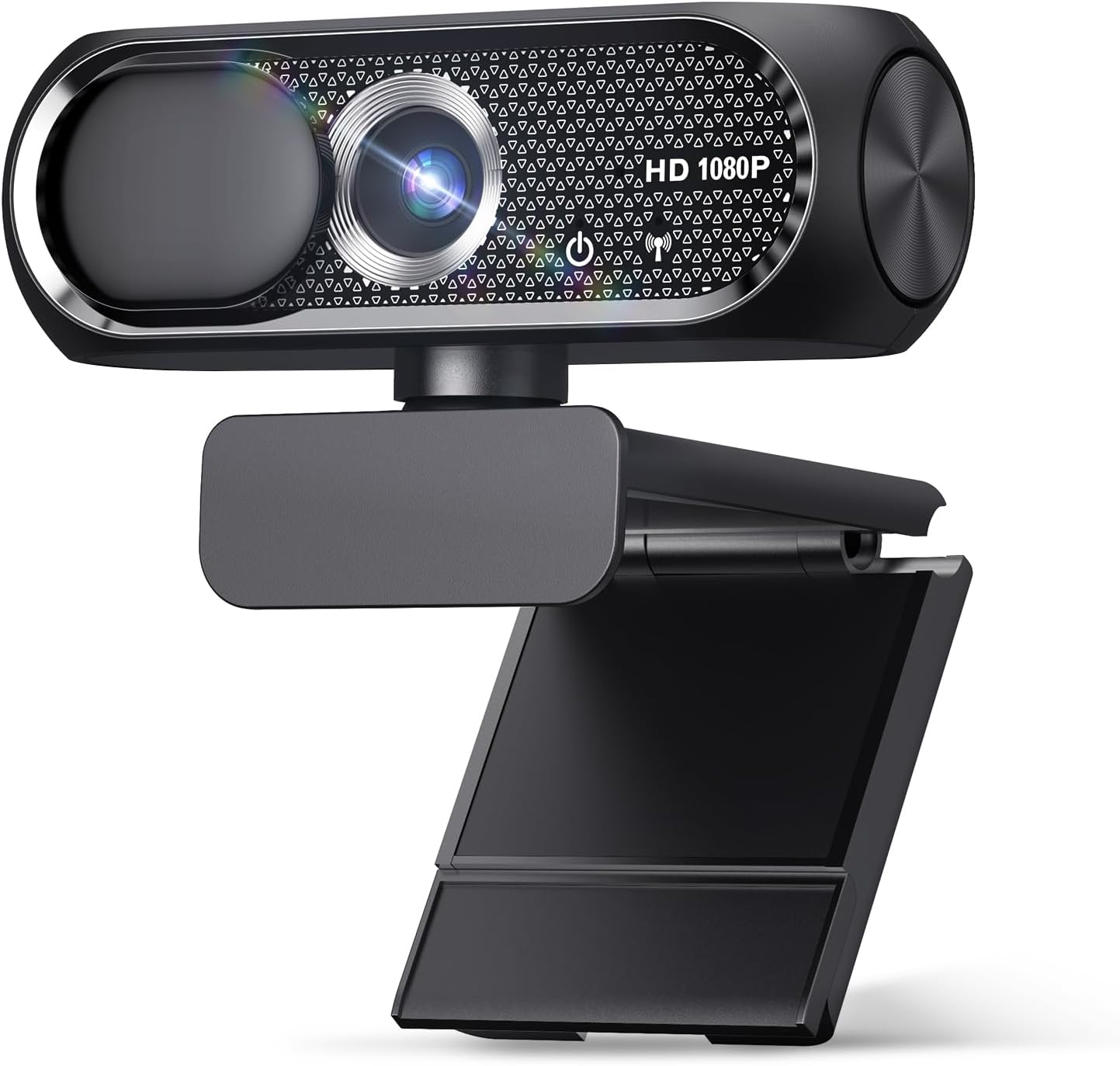
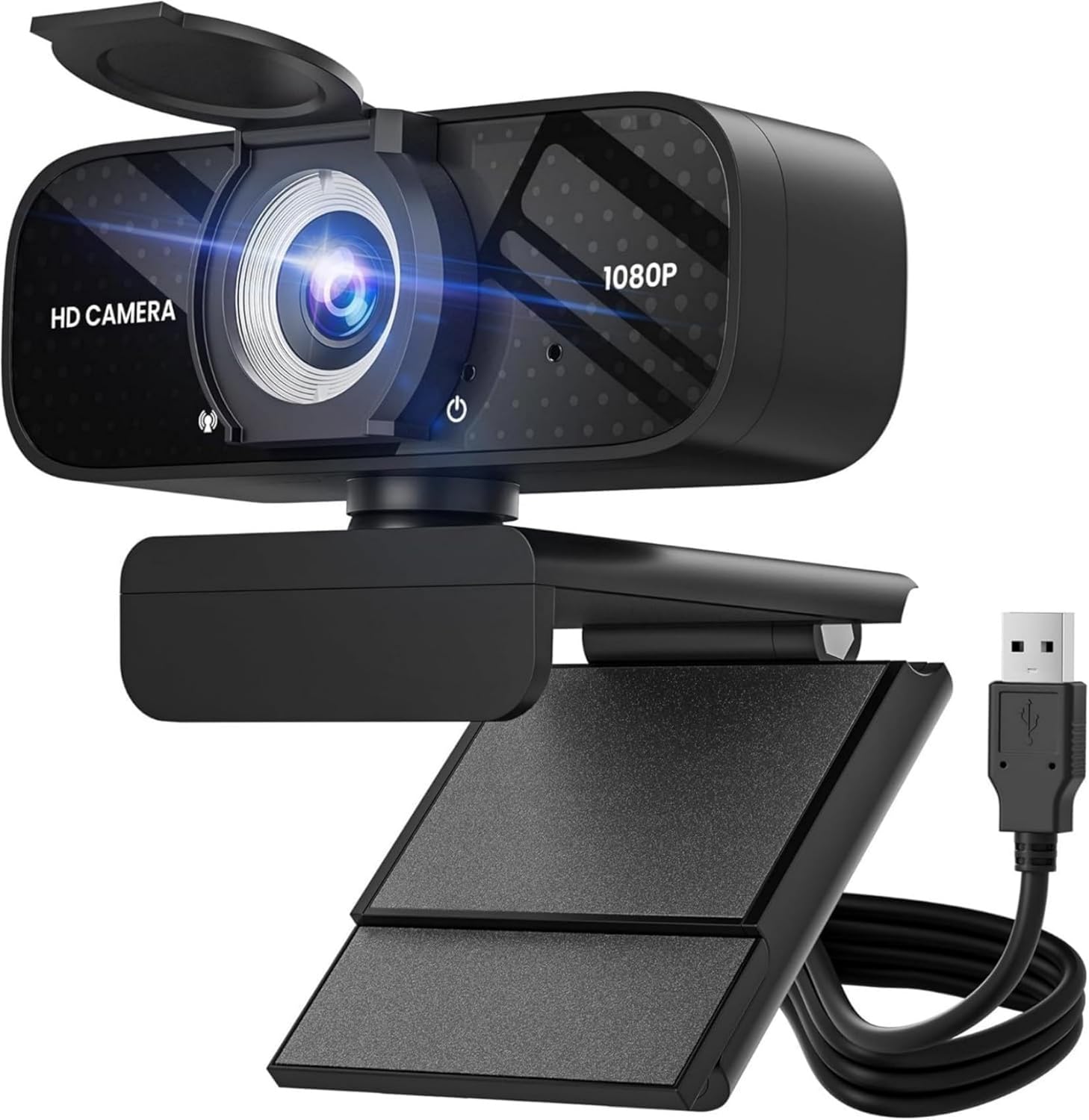

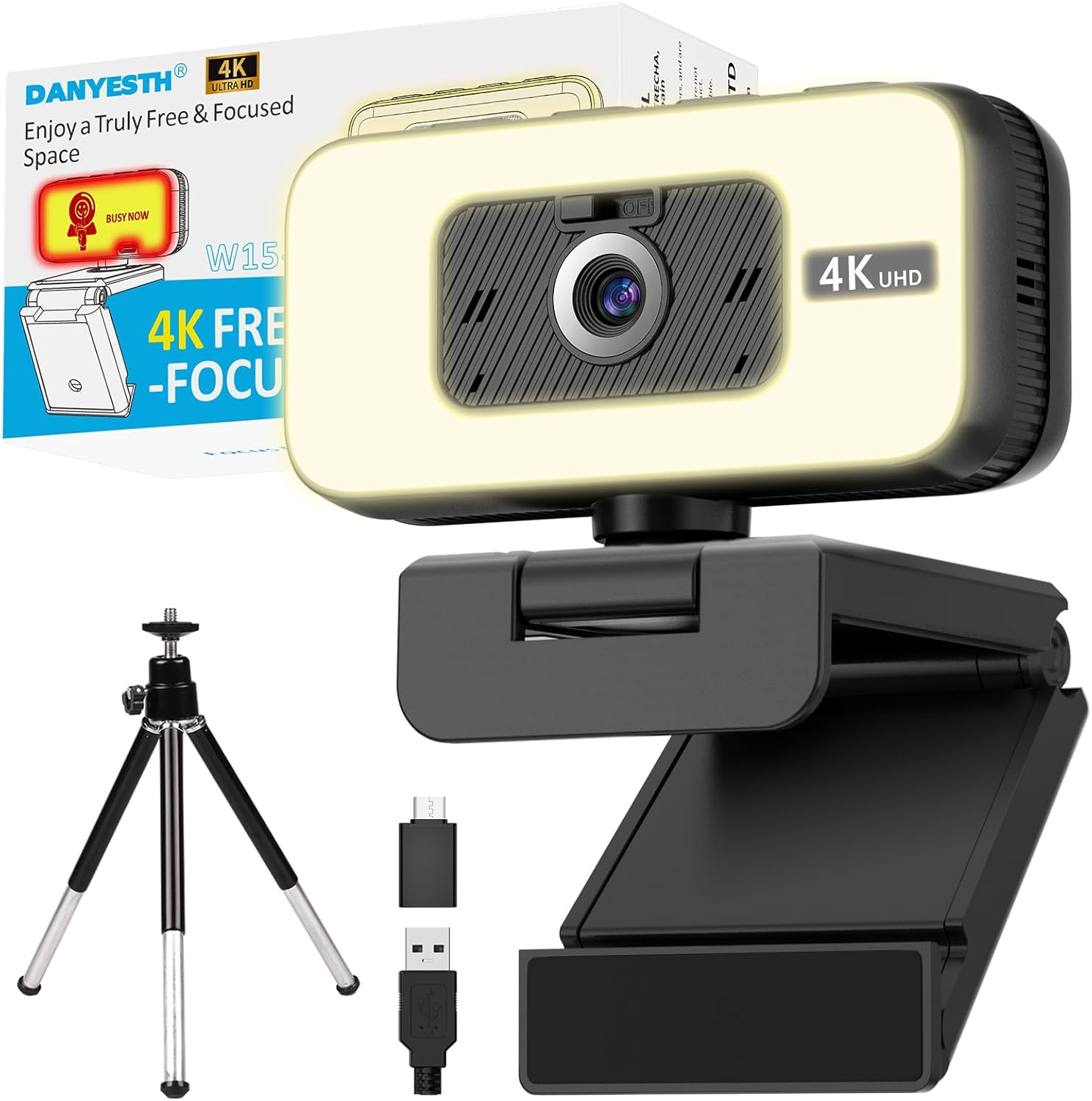
![2K Webcam for Loptop, Computer Camera with Light for PC/Desktop/Mac [Light Your Face, Free Your Space] USB Webcam with Auto Anti-Disturb Backlight, Zoom & Flip, Privacy Cover, Microphone](https://m.media-amazon.com/images/I/713Iu8qCQSL._AC_SL1500_.jpg "2K Webcam for Loptop, Computer Camera with Light for PC/Desktop/Mac [Light Your Face, Free Your Space] USB Webcam with Auto Anti-Disturb Backlight, Zoom & Flip, Privacy Cover, Microphone")